• Skip to primary navigation
  • Skip to main content
  • Skip to primary sidebar

Ministry Management System

Enabling growth through leveraging and scaling up the talent and expertise of our leaders ...

  • HOME
  • Management System Administration
  • Leadership
  • Human Resources
  • Execution
  • Measurement, Analysis, and Improvement
  • Administration
  • Arts
  • Connections
    • Pastoral Care
  • Groups
  • Operations
    • Finance
  • Outreach
  • Preschool
  • Student Ministries
  • Teaching
  • Children’s Ministry

Kevin Stone

Facility Usage Instructions

January 11, 2025 By Kevin Stone

Cleaning, Trash Removal, and Overall Orderliness

As you know, our desire is to maintain a clean, orderly facility for ministry use by staff, volunteers, and the community.  To help accomplish this, we’ve retained the services of a cleaning company.  The “cleaning guy’s” name is Scott.  He will be at the building on Saturday mornings (sometimes Saturday nights) and is responsible for trash removal from every room in the building, including the small trash cans located in each cubicle and in the Tech Booth.  His responsibilities also include cleaning all restrooms (upstairs and downstairs), sweeping and mopping all hard surface floors, vacuuming all carpeted areas, and cleaning all door glass and hardware.  On Monday mornings (before 8 a.m.) Scott will be back to clean the restrooms and lobby area as well as to empty trash.

In between cleanings by the cleaning guy we should all pitch in to keep things clean and orderly.  If in your travels around the building you see trash that needs to be emptied or an area that needs to be cleaned (floor, restrooms, etc.), take it upon yourself to take care of it.

The dumpster is emptied once per week on Wednesdays.  Please make sure trash is put in the dumpster and not beside the dumpster.  Trash located beside the dumpster will not be taken by the waste disposal company.

Intercom System

As you know, we have an intercom system installed between the front door and the upstairs office area.  The system was installed to allow us to keep the front doors locked with visitors pushing a call button to gain access to the building.  Keep in mind that volunteers who have arranged to use the building (small group meeting, play group, etc.) have an access card which allows them to unlock the far right door themselves.

When a visitor arrives they will press the call button.  This results in an audible “tone” in the office area.  If you hear this tone, you should go to one of the two office area doors and answer.

Here’s how it works:

  1. Tone sounds and a red light comes on in the #1 position.
  2. You press the button under #1 which turns the intercom system on.
  3. Press the “talk” button and say something like “good morning, what can I do for you” and release the button to allow them to talk to you. When you release the talk button they can talk to you without pushing any buttons on their end.
  4. If their business requires them to enter the building, you should go down to meet them. Due to the preschool’s security policy, no unidentified person should be allowed into the building without an escort.
  5. If the person is known by you to be in the building without escort, tell them you will “unlock the far right door” and press and hold the button on the panel with the image of a “key” to release the magnetic lock on the door. Listen for the door to close behind them before you release the button.

Lights in the Building

You might have noticed that there are a number of light switches located all over the building.  Managing this will take everyone’s cooperation.  Basically, if you are the last one out of the building you should make sure the lights are turned off (except the rear stair tower – those lights should be left on at all times) before you leave.  If you are the first one there in the morning, please turn on the airlock and the lobby lights.

The lights in the downstairs classroom hallway and all 3 elevator foyers are on motion detector switches/timers.  These lights will go off automatically if they sense no motion for 30 minutes or more.

Locking/Unlocking Doors

For regular “mid-week” entering and exiting the building, you need not unlock any of the front doors.  You should use your “keycard” to gain entry via the far right (as you face the building) door.  This will prevent doors from being accidentally left open.  If you are conducting an event/meeting where others (without keycards) will be entering after you, you should “dog down” some or all of the front doors using the “dog down key” located in the Tech Booth.  If this is necessary, you are responsible for returning the door(s) to the locked position before you leave the building.  If your activity requires you to unlock any other door in the building, you are responsible for re-locking the door.

Meetings in the Building

All meetings in the building should be scheduled using the room’s calendar in Outlook.  Conflicts should be resolved in the best way possible between the meeting facilitators.  Meetings scheduled in advance (in Outlook) have preference when a conflict exists.

Due to the potential dangers in the building (elevator, baptistry, stairs, etc.) and the potential for damage to the facility and/or equipment, supervised child care must be provided if participants are bringing their children and they cannot be supervised at all times.  In other words, children should not be allowed free access to all areas of the building without constant adult supervision.

If you are conducting a meeting in any area of the building (conference room, classroom, auditorium, etc.) and you require chairs, tables, etc. you are responsible for returning the space to the way you found it (ready for its primary use).  For example, if you are conducting a meeting in the upstairs classroom (Primary Usage: elementary classroom) and you are using the marker board, table(s), and chairs you are required to put these items away when you are done.

Resources such as projectors, DVD players, TVs, etc. that are needed should be arranged in advance and scheduled using Outlook.  If the meeting facilitator is not able to operate the equipment properly, arrangements must be made to have a qualified operator present.  This should be coordinated through the Arts department.

Office Area Security

When it is not occupied, the upstairs office area should be kept locked.  If you are the last one out, please turn off the lights and make sure both doors are locked.  It is highly recommended that you keep your cubicle drawers locked to prevent access by anyone other than yourself.

Security Alarm

Our building is equipped with a security alarm system.  If you are the first into the building you should enter your code immediately upon entering the building.  This is done by: 1) Entering your 6 digit code. 2) Pressing “turn off.”  3) Pressing “all.”  This will disarm the system completely.  There is a way to partially arm/disarm the system.  If you have a need to do this and would like to learn how, please contact the Executive Pastor.

If you are the last person to leave the building you should arm the alarm.  This is done by: 1) Entering your 6 digit code. 2) Pressing “turn on.”  3) Pressing “all.”  This will arm the system completely (all doors/zones).  If you are the last staff member to leave the building but there are volunteers/others in the building, you should ask around to make sure someone has the code and is responsible for securing the building when they leave.

Temperature Control

There are a total of 4 thermostats located throughout the building:

  1. Lobby – Located to the left of the ladies room door. This thermostat controls heating and cooling for the downstairs restrooms and lobby.
  2. Downstairs Hall – Located to the right of classroom #2 in the hallway to the downstairs classrooms. This thermostat controls heating and cooling of all downstairs classrooms as well as the hallway itself.
  3. Auditorium – Located on the rear wall of the auditorium in the Tech Booth. This thermostat controls heading and cooling in the auditorium.
  4. Upstairs – Located on the rear wall of classroom #1 to the left of the door to the storage area. This thermostat controls heating and cooling of the upstairs (storage area, network room, classroom, restroom, and office area).
  5. Airlock and Rear Stair Tower – These areas are heated via electric forced air individual heating units. There are 2 located in the air lock and 3 (1 per floor) located in the rear stair tower.  Thermostat control is adjusted for each individual unit and requires the cover of the unit to be removed to access the adjustment knob.

Each thermostat is “auto-changeover” meaning that it will switch between “heating” and “cooling” depending on need to achieve the set points.  There is a set point for heat and a set point for cool that is pre-programmed.  If a different temperature is required (either warmer or cooler) press the “touch screen” of the thermostat and adjust the setup for heat or cool depending on need.  If you have any questions contact the Executive Pastor.

Filed Under: Execution, Facilities, Work Instructions

Church Management Software (ChMS) Training

January 1, 2025 By Kevin Stone

To begin training, log into YOUR CHURCH’s ChMS with your email and password. A link to login is located you YOUR CHURCH’s website.

You can find all of YOUR CHURCH’s ChMS training workshops HERE. We suggest you go through the following workshops:

  1. Lead App – Definitely make sure you download and use the ChMS App! You’ll love it! You can use much of YOUR CHURCH’s ChMS functionality from your phone. Handy!
  2. Overview for Your Congregation – This is down near the bottom of the page, under “Congregation – Volunteers.” It’s the best overall look at the application they have.
  3. Managing Your Group – Pretty self-explanatory. Everything in the ChMS is organized into groups of people.
  4. Mail Merge – Important for communicating with groups of people. It’s basically how you create and send e-mails from the ChMS.
  5. Events/Calendar – A very important part of scheduling events and activities. You’ll get more on scheduling “Rooms & Resources” when you get to that training.
  6. Reporting & Searching – Again pretty self-explanatory.
  7. Rooms & Resources – Important for scheduling anything in either building, including use of tables, chairs, the church truck, etc.
  8. Forms – The primary method for having people sign up for stuff.
  9. Creating Process Queues – Important for setting up “people processes.”
  10. Managing Process Queues – instruction on managing queues once you’ve gotten a process setup.

Filed Under: Administration, Execution, Work Instructions

Office Phone Extension Listing

December 31, 2024 By Kevin Stone

[Read more…] about Office Phone Extension Listing

Filed Under: Execution, Human Resources, Operations, Work Instructions

Purchasing Operating Procedure

December 31, 2024 By Kevin Stone

Purpose

The purpose of this operating procedure is to establish, document, and communicate the process for purchasing at YOUR CHURCH.

Scope

The purchasing process should be used by paid staff and/or ministry area volunteers for purchases required during the course of conducting ministry activities at YOUR CHURCH. Purchases include but are not limited to supplies, equipment, books, subscriptions, and any other purchase not normally done via business expense reporting, check request, or petty cash processes. The process begins with the completion of a Purchase Requisition Form and concludes with the receipt of purchased goods.

Responsibility

As with all procedures and other documentation contained in the Management System, it is the responsibility of all ministry area leaders to ensure the details of this process are known and followed by all paid staff and ministry area volunteers. The primary responsibility for this process rests with the Bookkeeper.

Procedure

(1) Complete and Submit Purchase Requisition Form

(1.1) To make a purchase the requester should complete a Purchase Requisition Form.

(1.2) The purchase requisition should be filled out completely by the requester including the requester’s name, department, recommended supplier (if known), account number (selected from the Chart of Accounts), need date, item number (if applicable), description, quantity, and unit price.

(1.3) The requester should include any notes and special instructions that will assist the reviewer(s) in making the approval decision. If needed the reason for the request should also be included in the notes and special instructions section of the form.

(1.4) Once the Purchase Requisition Form is completed and saved for the requester’s records, attach it to an e-mail and send it to the approver (department leader or Executive Pastor). Be sure to CC any other staff members that should be aware of the request.

(1.5) If the requester is a department leader, the completed purchase requisition should be e-mailed directly to the Executive Pastor for final approval.

(2) Review Purchase Requisition Form

(2.1) Every purchase requisition requires the review and approval of a department leader.

(2.2) The department leader should ensure the purchase requisition is completed correctly and that all requested purchases are appropriate and reasonable within established guidelines and departmental expense budgets.

(2.3) Once the department leader reviews the purchase requisition, their approval should be indicated by forwarding the e-mail to the Executive Pastor, including the word “Approved” in the body of the e-mail.

(2.4) The Executive Pastor will review the purchase requisition and indicate final approval by forwarding the e-mail to the Bookkeeper with the word “Approved” in the body of the e-mail. To ensure the requester is notified of the approval, the Executive Pastor will CC them on the final approval e-mail to the Bookkeeper.

(2.5) If the purchase requisition is denied, it will be returned to the requester by return e-mail, along with an explanation of why it was denied. The requester should resolve the issue and resubmit the purchase requisition if desired.

(3) Make Purchase

(3.1) The Finance Department will review the purchase requisition to ensure it is properly completed, including all necessary information as well as the proper approvals.

(3.2) If a purchase requisition is found to be improperly completed or does not include all necessary information, it will be returned to the requester for resolution.

(3.3) After verification of the purchase requisition, the order will be placed based on date needed and availability of funds.

(3.4) Once the purchase has been completed, the Bookkeeper will notify the requester that the purchase has been made and the approximate due date for the goods purchased.

(3.5) In some cases, the Bookkeeper may return the completed, approved purchase requisition to the requester to allow them to make the purchase. In this case, the requester should notify the Bookkeeper when the purchase is completed, including the approximate due date for the goods purchased.

(4) Receive Requested Materials

(4.1) When the Finance Department has received the goods purchased, they are delivered to the requester or other individual as deemed appropriate and/or indicated in the notes and special instructions section of the purchase requisition.

(4.2) The requester is responsible for letting the Finance Department know if there is a problem with the order and if any action needs to be taken.

Related Documents

Bookkeeper Job Description
Chart of Accounts
Executive Pastor Job Description
Purchase Requisition Form

Filed Under: Execution, Finance, Operating Procedures Tagged With: bookkeeper, purchasing

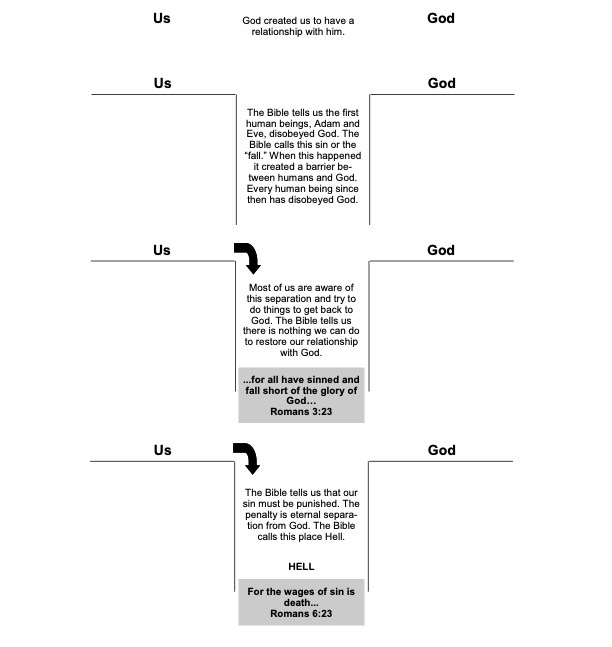
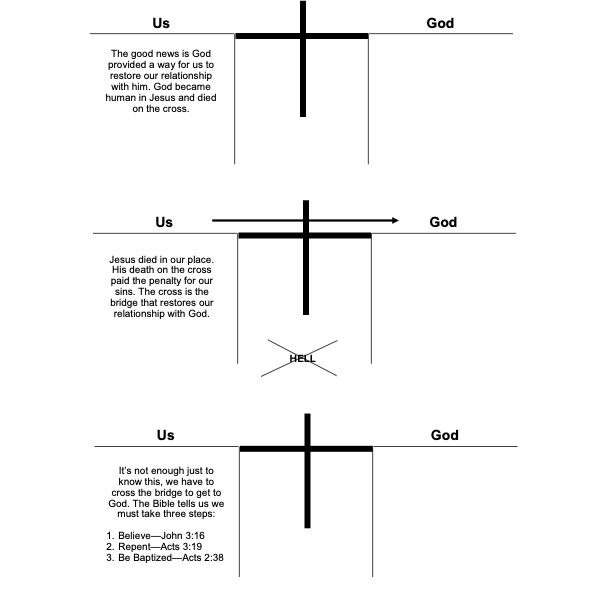
Drawing the Bridge Work Instruction

December 30, 2024 By Kevin Stone


Related Documents

Leadership Evangelism Operating Procedure

Filed Under: Execution, Outreach, Pastoral Care, Work Instructions

Leadership Evangelism Operating Procedure

December 30, 2024 By Kevin Stone

Purpose

The purpose of this operating procedure is to establish, document, and communicate the process for intentionally identifying, assessing, developing, and deploying leaders at YOUR CHURCH.

Scope

The leadership evangelism process should be used by Ministry Staff to identify and deploy leaders into ministry for the good of the church (Ephesians 4:11-13). The process begins with the intentional identification of potential leaders and ends with the deployment of a leader into the ministry of the church. Because YOUR CHURCH is committed to conversion growth (as opposed to transfer growth) and the relatively short length of time people attend YOUR CHURCH because of job mobility, leadership development must begin before a leader becomes a Christian … hence the term Leadership Evangelism.

Responsibility

As with all procedures and other documentation contained in the Management System, it is the responsibility of all ministry area leaders to ensure the details of this process are known and followed by all YOUR CHURCH paid staff and ministry area volunteers. The primary responsibility for this process rests with the Executive Pastor.

Procedure

(1) Identify Leadership Evangelism Candidates

(1.1) The ministry staff should regularly work to identify potential leaders, connecting with them intentionally with the intent of making an appointment to get to know them and begin the evaluation process.

(1.2) Potential leaders should be identified using a number of different methods (regular database review, weekly first-time guest lists, lobby conversations, leadership event participants, etc.). Potential leaders will also make themselves known via communication cards, assimilation classes, etc.

(1.3) The Ministry Staff member should be quickly assessing the “classification” a potential leader fits into (A, B, or C) with the intention of spending time only with “A” leaders. Potential leaders who fit more in the B or C classification should be delegated to volunteer leaders for follow up, development, and connection with a ministry team.

(1.4) Ministry Staff should base their classification assessment on available information (leadership in the marketplace, history of leading, input and critique of the ministry, etc.).

(2) Schedule Meetings With Identified Candidates

(2.1) Upon identification of an “A” leader, the Ministry Staff person should setup a meeting with the potential leader.

(2.2) The meeting (breakfast, lunch, dinner, other?) is for the purpose of continuing the assessment process and determining next steps with the candidate.

(2.3) One of the first things to assess is firming up an initial decision about the candidate’s classification. If it is determined that the candidate would better fit into a B or C classification, again they should be encouraged to meet with a volunteer leader of a specific area of ministry.

(2.4) The Ministry Staff member should ask the candidate about work history, family, spiritual journey, etc.

(2.5) With YOUR CHURCH’s emphasis on “conversion growth” much of the time the candidate will be a non-Christian. Therefore, the conversation should quickly focus on where the candidate believes they are spiritually. Drawing the “Bridge” using the Drawing the Bridge Work Instruction will help the candidate to communicate where they believe they are with God.

(3) Evaluate, Assess, and Develop Candidates

(3.1) During the first meeting, one of the first things to assess is firming up the initial decision about the candidate’s classification. If it is determined that the candidate would better fit into a B or C classification, they should be encouraged to meet with an appropriate volunteer leader.

(3.2) The Ministry Staff member should ask the candidate about work history, family, spiritual journey, etc.

(3.3) With YOUR CHURCH’s emphasis on “conversion growth” much of the time the candidate will be a non-Christian.  Therefore, the conversation should quickly focus on where the candidate believes they are spiritually.  If they are not a baptized believer, use the bridge to help them communicate where they think they are with God.

(3.4) During future meetings the focus is primarily on helping the candidate to make a decision and cross the line of faith, continuing to identify and challenge the barriers that are keeping them from making a decision for Christ.

(3.5) Evaluation and assessment also includes completion of the Myers-Briggs Personality Assessment and a discussion about what they are really “passionate” about.

(3.6) Once a candidate crosses the line of faith and is baptized, they should then be given the Spiritual Gifts Assessment to determine whether or not they have the spiritual gift of leadership in their gift mix (top 3 gifts).

(3.7) The evaluation, assessment, and development process continues via on-going meetings (at least every 6 weeks) until the candidate has been connected to an area of ministry.

(4) Connect Candidates With Volunteer Ministry Positions

(4.1) Once the evaluation and assessment process has been completed and the candidate has crossed the line of faith and is baptized, the Ministry Staff member should work with them to help them find a “fit” in a ministry area.

(4.2) In most cases, the candidate should be ready to take on some type of leadership assignment. It might be necessary to bring the candidate alongside the Ministry Staff member in some leadership effort (Sunday morning, event, etc.) in order to help them to find their best fit.

(4.3) In all cases, leadership assignment requires that the individual be a “member” of the church in good standing.

Related Documents

Church By-Laws – Membership
Membership Covenant
Myers-Briggs Personality Assessment
Spiritual Gifts Assessment

Filed Under: Operating Procedures

  • Page 1
  • Page 2
  • Page 3
  • Interim pages omitted …
  • Page 15
  • Go to Next Page »

Primary Sidebar

Login Status

Document Types

  • Management System Manual
  • By-Laws
  • Strategies
  • Policies
  • Position Papers
  • Organizational Charts
  • Operating Procedures
  • Work Instructions
  • Job Descriptions
  • Ministry Descriptions
  • Forms
  • Resources
  • Key Performance Measures (KPMs)

Tags

administrative assistant to valley kids arts ministry arts pastor associate pastor bookkeeper by-laws children's pastor church discipline policy early childhood pastor elementary division pastor executive limitations executive pastor finance team high school pastor KPM leadership team membership membership requirements middle school pastor ministry descriptions outreach pastor pastor of pastoral care planning policies preschool assistant teacher preschool director preschool lead teacher producer production assistant purchasing security security person senior pastor staff policy manual strategic plan student arts pastor technical arts technical director volunteers wedding process operating procedure youth pastor

Recent Additions

  • Facility Usage Instructions
  • Church Management Software (ChMS) Training
  • Office Phone Extension Listing
  • Purchasing Operating Procedure
  • Drawing the Bridge Work Instruction

Return to top of page


Copyright © 2026 Ministry Management System · Log in